
Kopage SMTP email settings for RoundCube
Kopage contact form help and user tips
Kopage is a very intuitive website builder but the email contact form can be a little tricky
to set up. Below is a mini tutorial with images showing how to connect the contact form
on your Kopage site with RoundCube email.
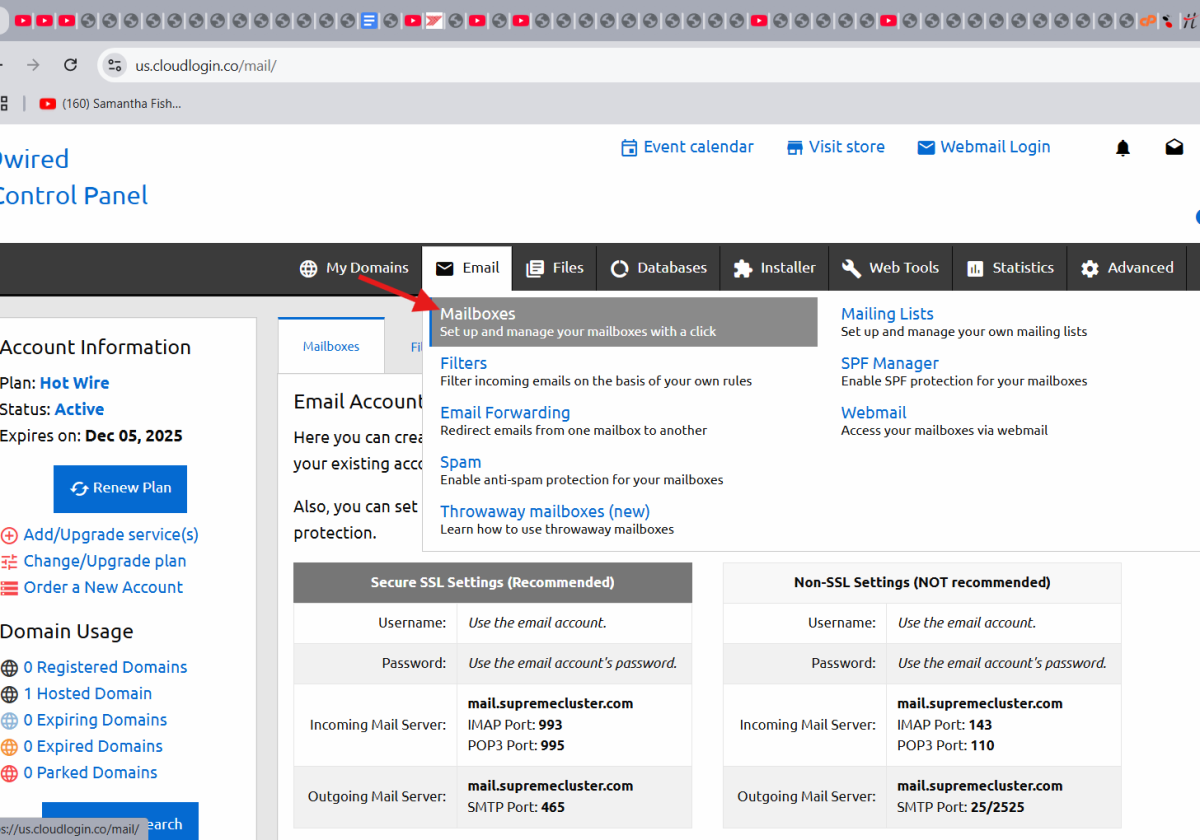
Set up email
These instructions are to setup an email account in RoundCube (emailbox) for your Kopage Sitebuilder. This is for RoundCube only, I could not get this setup to work with gmail.
The email setup can be a bit tricky and is one Kopage's weak spots. Step 1: go to the Email Manager in your control panel and click on Mailboxes in the dropdown. Click on the 'Add a New email Account' blue box. Add a name or initials and password, save these, as they will be your login information in RoundCube.
The email setup can be a bit tricky and is one Kopage's weak spots. Step 1: go to the Email Manager in your control panel and click on Mailboxes in the dropdown. Click on the 'Add a New email Account' blue box. Add a name or initials and password, save these, as they will be your login information in RoundCube.
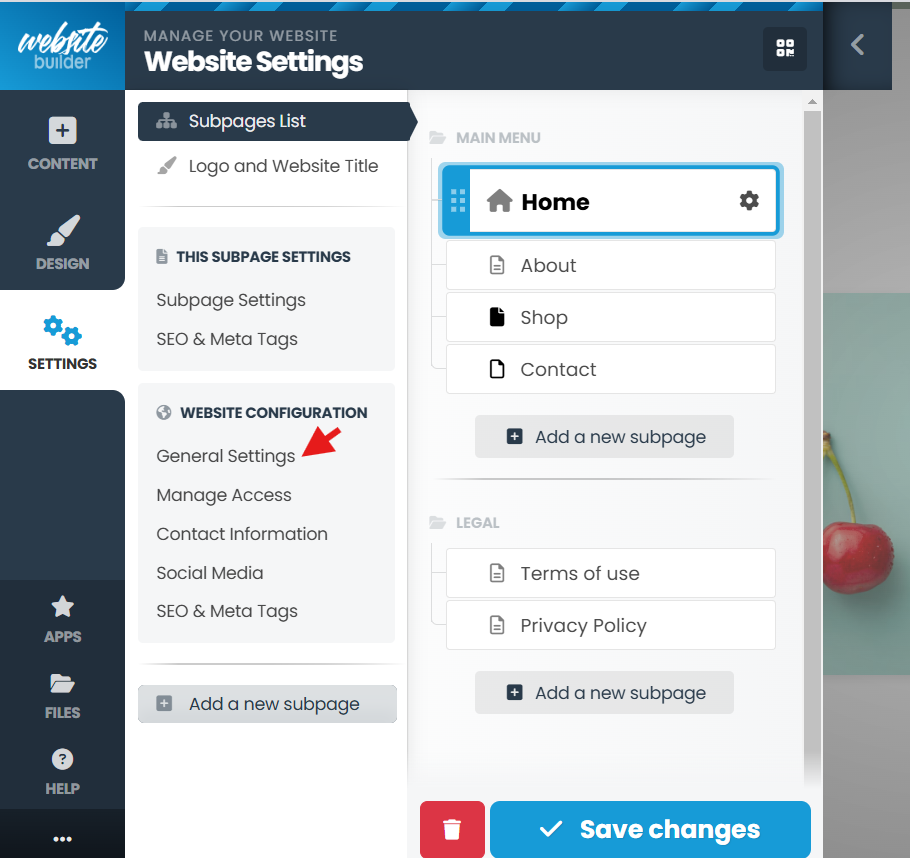
Kopage Contact Settings
Step 2: Go to your Kopage Control Panel and click on 'Settings' ->'General Settings'. In the 'Aministrator's email' enter the email address you just created. In the 'SMTP Hostname' enter this exactly as is without the quotes "mail.thexyzserver.com", this is the RoundCube SMTP server. Set port to 465 (SSL secure port) if it's not already.
SMTP Username is the email address you just created and SMTP Password is the password of that email address. Tick SSL box.
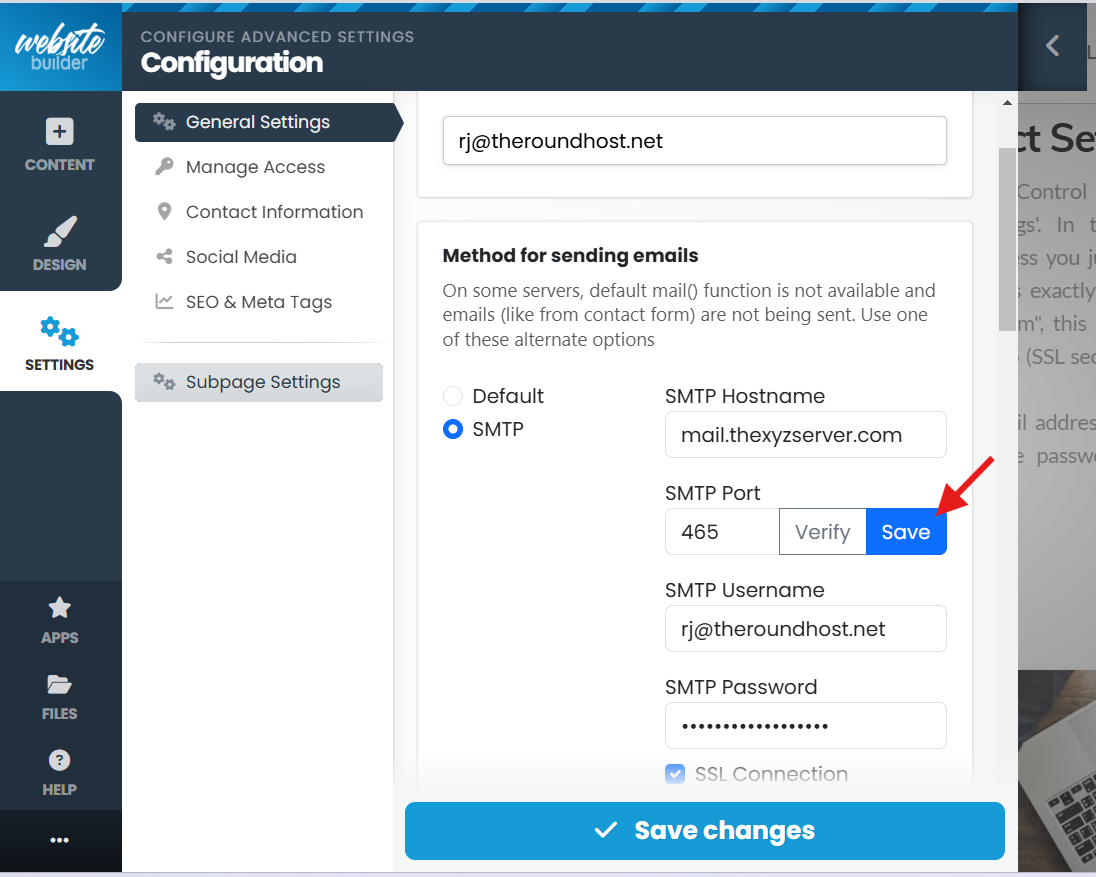
Verify and Save
When you have all of the information entered hit Save and then go back and click "Verify". With any luck a Blue "Save" button will appear next to Verify, it it does click it and the "Save" at the bottom. You should be done, test your contact page, send a message and check your mailbox in RoundCube.
Step 3: If the blue Save button does not appear, all is not lost. Click "Apps" in the Kopage Control Panel->Form Builder->hover over your contact form and click on "Edit". Click on the "3 Dots"->"Form Properties"->Enter the email address from RoundCube in the "Action email" slot. Make sure to click "Save". Test your Contact page.
Step 3: If the blue Save button does not appear, all is not lost. Click "Apps" in the Kopage Control Panel->Form Builder->hover over your contact form and click on "Edit". Click on the "3 Dots"->"Form Properties"->Enter the email address from RoundCube in the "Action email" slot. Make sure to click "Save". Test your Contact page.
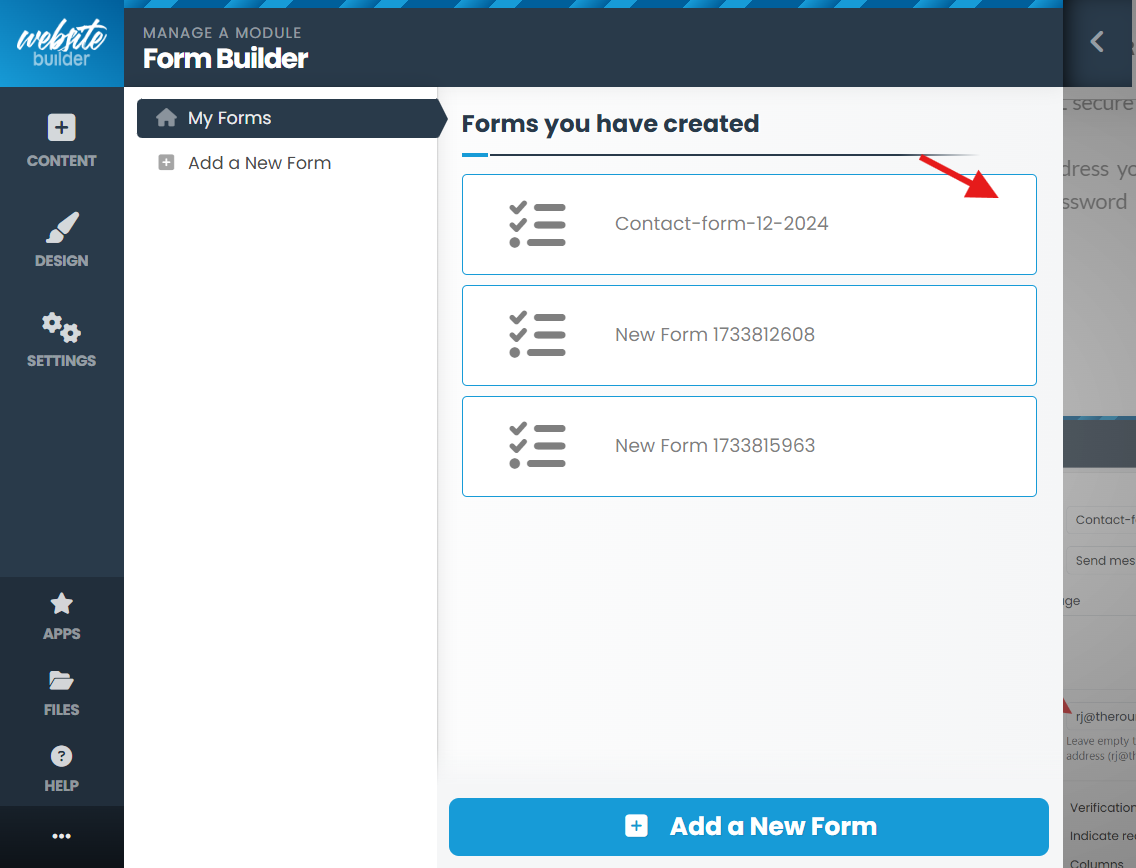
Edit Contact Form
Hover over your Contact Form and "Edit" will appear on the right side
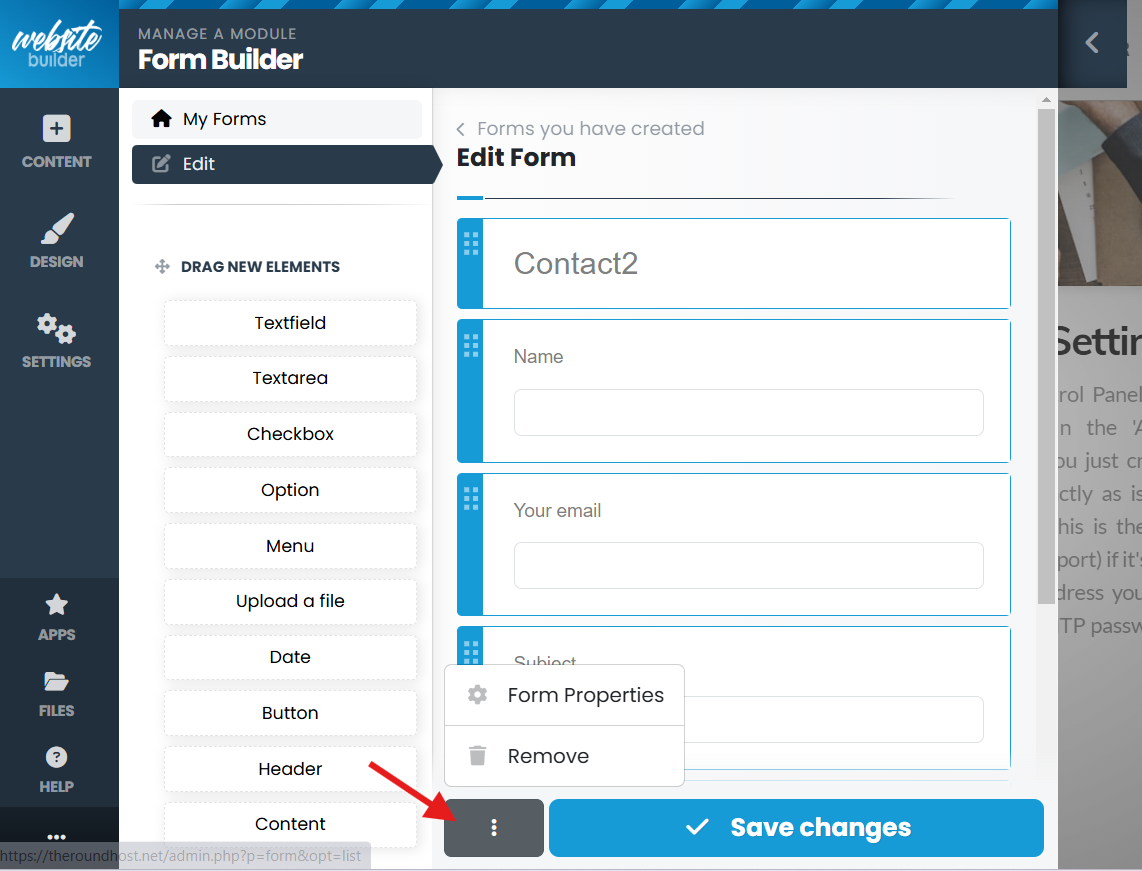
Form Properties
In the Form Properties are the Action Email setting and Form Action setting.
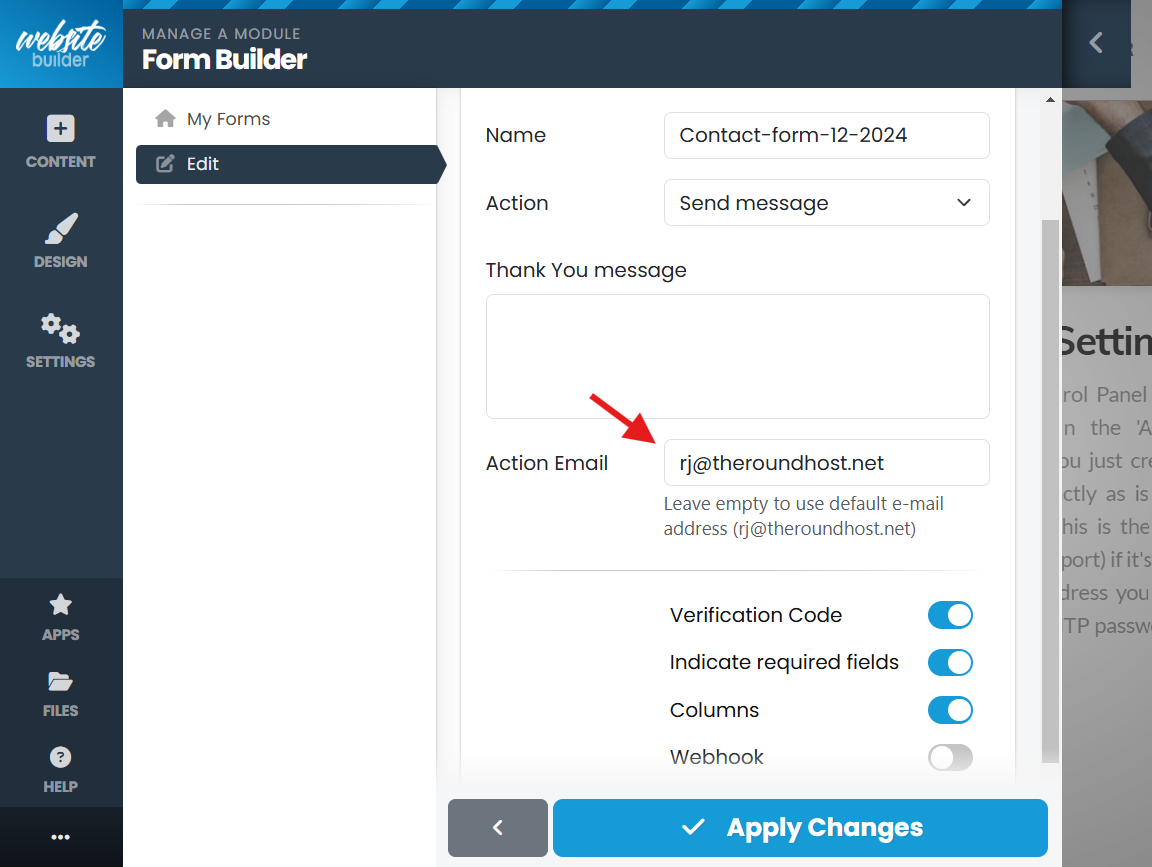
Edit Action Email
Remember this setting, if you change any of your email settings or email address, this setting may not change automatically
Note: If your contact page is sending to RoundCube properly, revisit the above instructions and try to verify your settings again. I would keep trying until the Save appears and then you know for sure your settings are locked in.
Note: If your contact page is sending to RoundCube properly, revisit the above instructions and try to verify your settings again. I would keep trying until the Save appears and then you know for sure your settings are locked in.